In this post, I’ll walk you through how to use Tailwind for Pinterest. Most importantly, I’ll reveal the exact strategies I use to get the most out of it (so you can, too!).
If you haven’t heard of Tailwind, it’s a game-changing scheduling app for Pinterest. It makes Pinterest marketing feel like a cake walk.
It’s hands-down my favorite social media tool for business.
Not only does it allow you to schedule your pins in advance, but it also has many other features, including Tailwind Communities (similar to group boards, but even better) and killer analytics.
Plus, Tailwind is an official partner of Pinterest, so that tells you they’re doing something right!
You’ll see the best results if you use Tailwind as a tool for elevating your Pinterest strategy. If you haven’t yet, I recommend optimizing your Pinterest profile and implementing a strong Pinterest SEO strategy.
Why is Tailwind so important for business owners?
There are many reasons why Tailwind is so powerful for small businesses and creative entrepreneurs. Here are the big ones:
- You can schedule pins at optimal times so you don’t have to be on Pinterest when you don’t want to be (yes, that means you can finally take a vacation!)
- It increases your reach & traffic on Pinterest by incentivizing other pinners to share your pins
- It saves you time by making it easy to find content to share
- You can easily loop your pins and schedule intervals to re-share your content without spamming
- You can track which pins you’ve already pinned to your own boards & your group boards (and how long ago you shared them)
Is Tailwind worth it?
I can’t promise you that you’ll get a certain number of followers, or a specific volume of traffic. But I CAN tell you how much of an impact it’s had on my own business.
Since joining Tailwind, my re-pin rates and click rates have gone up drastically, too. And really, when you use Pinterest for business, clicks should be your ultimate goal.
These are my personal results, but Tailwind also publishes the typical results of members every year.
They have a free plan, which lets you schedule 20 pins per month AND you can use Tailwind Communities, too!
Try it out and see if you like it! It’s hands down the best investment I’ve made in my business. From what I’ve seen, you can get wayyy more bang for your buck with Pinterest + Tailwind than using paid traffic sources like advertising.
Now, let’s move on to how Tailwind works and how to use it strategically to skyrocket your reach on Pinterest.
How to Use Tailwind for Scheduling Pins
One of Tailwind’s main features is its Pinterest scheduling.
It determines the best times for you to pin based on when your audience is typically online, and it queues up pins that you select. That way, you can pin during the best times (when your followers are on the platform) without being on Pinterest at all hours of the night.
You can view your schedule and move pins around easily. You can even shuffle pins, which is especially helpful if you like to batch-pin a lot of similar pins at once.
If you hover over a pin, you can see exactly which board it’s scheduled to pin to, and at what time.
[Mobile] How to schedule a pin to Tailwind from the Pinterest app
Install the Tailwind app
Hold down on an image in the Pinterest app
Select the ‘Send’ button
Tap ‘More Apps’
Tap ‘Tailwind’
Select the board(s) you want to schedule to
Add a keyword-rich description
Tap ‘Schedule’
[Desktop] How to schedule a pin to Tailwind from Pinterest OR from anywhere on the internet
Install the Tailwind extension for Google Chrome, Safari, or Firefox
Hover over any image
Click the Tailwind ‘Schedule’ icon
Type in the board(s) you want to schedule to
Add a keyword-rich description
Verify that the correct URL pulled in (it should automatically do this if you’re using the extension on your website)
Click the ‘Add to Queue now’ button
When you schedule a pin, you can also choose to select a custom time, share it to your Tailwind Communities, or add it to your SmartLoops. We’ll go into more detail on Communities later.
If you schedule the pin to multiple boards, you can set a specific interval between shares.
For example, if you want to share a pin to all your group boards, you can space it out by several days so you aren’t spamming.
How to Use Board Lists to Save Time
Board lists are a life-saver when it comes to scheduling a pin to multiple boards. I mainly use them for my group boards, but you can use them for your own boards, too.
Instead of having to schedule your pin to each group board individually, you can create a board list that has all of them. Then, you only have to type that one board list’s name, and they’ll all be selected.
Tip: you can use board lists to keep track of which pins you’ve already added to your group boards.
Here’s how:
Start as if you’re about to add a pin to your queue. You can also do this from your drafts.
Type in your group boards board list, and hit enter.
If an orange exclamation mark appears, that means you’ve shared a pin with that link to at least one of the selected boards.
If you click on the exclamation mark, Tailwind will tell you which boards the pin’s already been shared to and how long ago it was added.
This is so helpful for making sure you’re not adding duplicates if a group board doesn’t allow them. I’m sure I’m not the only one who likes to avoid getting kicked out of group boards! This trick makes it a lot easier to follow board rules.
How to Set Interval Scheduling for a Pin
When you do schedule a pin to multiple boards at once, you want to make sure they won’t be pinned all at once. This is especially important for group boards, since many have a rule that you can only pin a maximum number of pins per day.
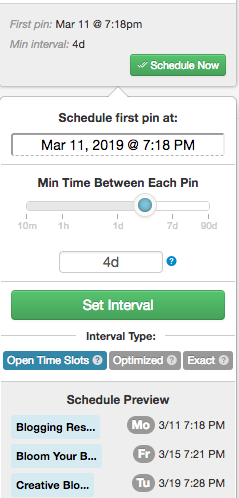
That’s where interval scheduling comes in. It allows you to easily space out your pin’s schedule by a certain number of days.

Here’s how it works:
Click the Tailwind icon to add a pin to your queue
Select the boards or board list you want the pin shared to
Click ‘Set Interval’
Select the date & time you want the interval to start
Choose the number of days to wait before the next time the pin is shared
Choose if you want the timing to be based on open time slots, optimized (create new time slots), or an exact time
View the scheduled preview that appears
If you’re happy with it, click Set Interval
Your pins will now show up in your scheduled queue, spread out based on the interval you set.
Tailwind Communities
Tailwind Communities are similar to group boards. In my opinion, they’re even better!
Each Community is a group of pinners in a particular niche or with a shared purpose. For example, there are Communities for Etsy sellers, bloggers, and all types of online businesses.
You use Communities as you would use group boards: by sharing your own content so others can re-pin it. And, just like for group boards, there’s an expectation that you’ll reciprocate by sharing others’ content from the Community.
It’s a mutual partnership, and the concept works very well. Communities are even better than group boards because it’s easier to tell if someone isn’t following the rules.
Plus, pins that are re-pinned through Tailwind Communities are considered ‘new’ pins, as if they have been saved from your website. This tells Pinterest that your content is high quality and worth sharing.
Another awesome perk of Tailwind Communities: if you create & share quality pins, power pinners might re-share them to their much larger audiences.
I’ve also had pinners share my pins to a bunch of their group boards for even more reach. It’s such a good feeling. And if it can happen for me, it can happen for you, too.
Again, these are my personal results. There’s no guarantee that all of this will happen. But I want to show you it’s possible!
Now, let’s delve further into how to use Tailwind Communities strategically.
How to Share a Pin to Your Tailwind Communities
You can share a pin to your Tailwind Communities the same way you add it to your queue.
Find the pin (in your drafts in the Tailwind app or site, or using the Tailwind extension on Pinterest or your website)
Select the ‘Add to Communities’ button
Choose which Communities to share your pin to, and click ‘Add to Community’
If you hover over the red exclamation point, you can see the last time you added this link to your Communities, if it was with a different image, and when it was added. This helps you avoid adding duplicate pins too often.
Keep in mind: the amount of monthly Community submissions you’ll have depends on your membership level. If you decide you want to share more pins per month than the basic level comes with, you can purchase PowerUps.
To save yourself some time, save a draft of each new pin you create in Tailwind with your description and URL entered. Then, you can easily share it to your Communities at different times throughout the week without having to create a new pin each time.
How do I find the best Communities for me?
If you haven’t joined Tailwind yet, you can use the free plan to explore Communities in your niche and submit 30 pins per month!
You can tell a Community is high quality if it has a lot of engagement. The green bars next to the Community’s name will tell you how active it is.
Click the ‘preview Community’ button, and you’ll be able to see its detailed stats on the left hand side of the screen.
Check if the Community is active, and if they have good re-share and re-pin metrics. These are good indicators that it’s worth joining.
When deciding which Communities to join, consider your niche and your audience. Often, it’s better to join a smaller Community that’s more in line with your business than a larger, more generic one.
Some Communities are public, and some can only be joined by request or invitation.
To get you started, here’s a list of 10 Tailwind Communities for online shops and creative small businesses:
All Handmade Pin Exchange
Artists Unite
#BadassCreatives
Beautiful Printables
Best of Etsy Products
Creative Entrepreneurs
Etsy Handmade Creations | Small Business
Etsy Lovers- All Things Etsy
Promote MeCommerce
Etsy Mini Mall Tribe
And here’s a list of 10 Communities for online entrepreneurs and bloggers:
Action-Taking Business Owners Community
Best Blogging and Social Media Tips
Blog + Biz Babes
Bloggers + Creative Infopreneurs Tribe
Bloggers Chalkboard
Blogging & Social Media Pins [Run By ClarityAvenue]
Digital Marketing Tribe
Share Blog + Biz Tips
Small Biz Besties
Small Business
How do I join exclusive Tailwind Communities?
You can usually request to join an exclusive Community. Be sure to include an introduction about yourself and your business.
If you don’t feel like waiting, however, there are other ways to find invitations.
Secret tip: you can find a link for most exclusive (‘Request to Join’) Tailwind Communities by Googling the name of the Community in quotation marks + the words ‘Tailwind Community’.
Another good way to find invite links is to find out who the Community owner/creator is. Check out their blog posts related to Tailwind to see if they’ve included a link there.
I was able to find a LOT of Community invite links using these methods, and it’s quicker than sending a request to join.
But again, no matter how much you use Tailwind or Communities, you won’t be successful if you don’t create quality pins or follow the Community rules. Nobody likes a spammer!
Tailwind Communities Best Practices
Always share others’ pins more often than you add your own.
Adhere to the Community rules. Some Communities request that you only add a certain amount of pins per day. Others may request that you only add graphics that are longer than they are wide (also known as vertical pins). Be sure you’re only adding pins that are relevant to that Community’s topics.
Typically, these rules are there to discourage spamming and low quality pins. They help make the Community run smoothly, so do your best to follow them!
Continue to Evaluate Your Communities
After you’ve been a Community member for a while, evaluate your stats. See if each Community has been a good fit for you.
You can find this information on the Communities page, under the Community’s description.
Maybe certain topics or types of pins do better than others in that particular Community. Look at the content you’ve shared to see what’s been re-shared the most. That will give you a good idea of the type of pins you should continue sharing to that Community.
You can even create your own Community! Invite others in your circle who you think would be strong contributors.



Comments
Post a Comment